Neovim as an IDE: Harnessing LazyVim
Neovim as an IDE: Harnessing LazyVim
Neovim has long been celebrated for its lightweight, extensible core, but with the right configuration it can rival heavyweight IDEs. LazyVim is a community‑driven starter‑kit that brings modern IDE‑like features to Neovim out of the box – file explorer, fuzzy finder, LSP integration, beautiful status line, and more. Below we walk through setting up LazyVim and showcase its UI with custom screenshots.
Why choose Neovim?
- Speed – Starts in milliseconds, even on modest hardware.
- Keyboard‑first – No mouse needed once you master the keymaps.
- Extensibility – Plugins written in Lua, Vimscript, or even Rust.
- Cross‑platform – Works the same on Linux, macOS, and Windows.
Getting started with LazyVim
Install Neovim (v0.9+ recommended).
Clone the LazyVim starter:
git clone https://github.com/LazyVim/starter.git ~/.config/nvimLaunch Neovim – the configuration installs plugins on first run.
Enjoy a ready‑made IDE experience – open a project folder and start coding.
Core IDE features in LazyVim
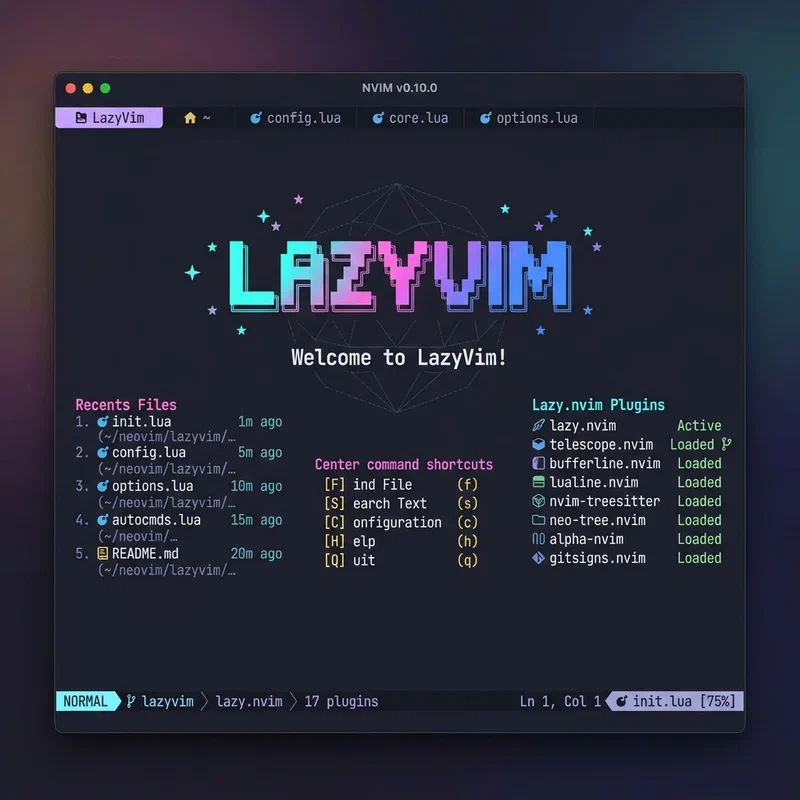
Dashboard
When Neovim starts, LazyVim shows a sleek dashboard with recent files, project shortcuts, and quick‑access plugins.
File Explorer
A built‑in file explorer (via nvim‑tree) provides a tree view on the left,
complete with icons and git status.
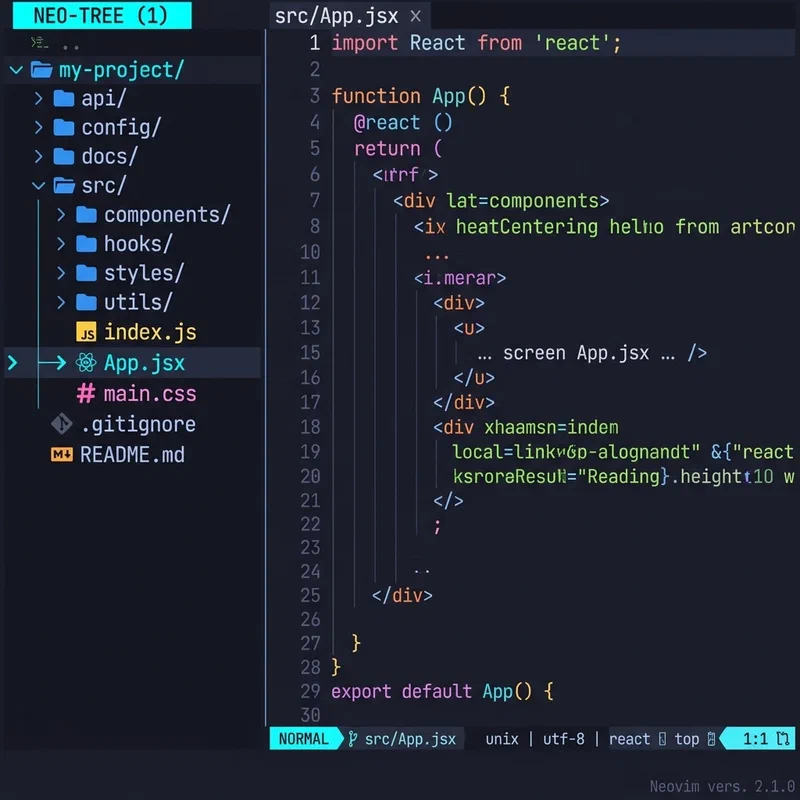
LSP and Autocompletion
LazyVim ships with nvim‑lspconfig and cmp for on‑the‑fly diagnostics, code
actions, and context‑aware completions.
-- Example LSP setup (handled by LazyVim)
require('lspconfig').tsserver.setup {}
Fuzzy Finder (Telescope)
Press <leader>ff to bring up Telescope and instantly locate files, symbols, or
grep across the project.
Status Line & Tab Bar
A minimal, animated status line shows mode, file info, and diagnostics, while the tab bar lets you jump between buffers with a single keystroke.
Customising LazyVim
LazyVim is deliberately opinionated yet fully configurable. To tweak colors, add
plugins, or change keymaps, edit ~/.config/nvim/lua/config.lua.
-- Example: add a custom keymap
vim.keymap.set('n', '<leader>gs', ':Git status<CR>', { desc: 'Git status' })
Conclusion
With LazyVim, Neovim transforms from a powerful editor into a fully‑featured IDE without sacrificing the speed and simplicity that developers love. Try it out, customize the layout, and you’ll have a development environment that feels both familiar and uniquely yours.
Happy coding!